This guide outlines the process for easily creating phone conferences hosted on Google Hangouts from within the Google Calendar UI.
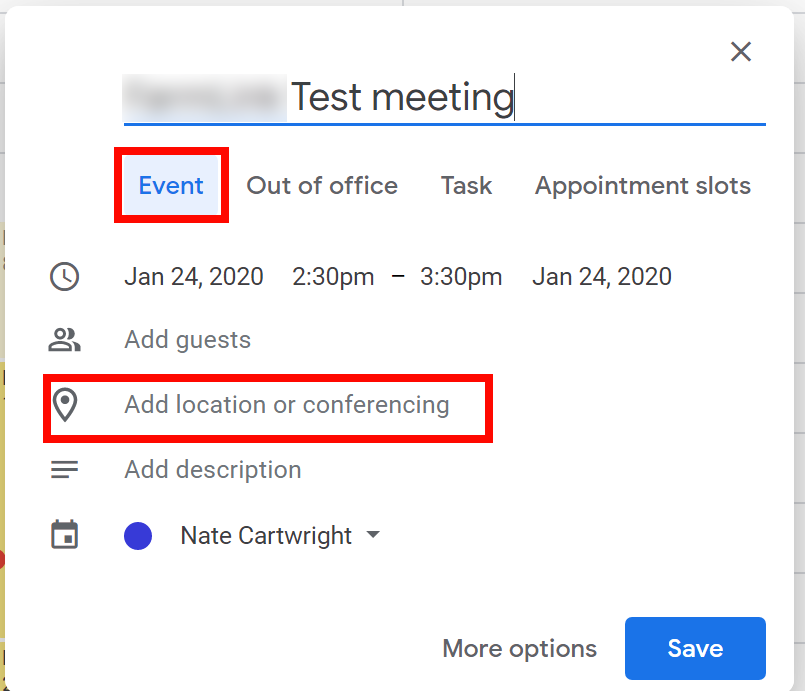
1. Create a new event (or edit an existing one) in your Google Calendar (calendar.google.com), and click the "Add location or conferencing" option on the new calendar event screen:
2. Click the "Add Conferencing" option once it appears after the previous step:
3. This will now show a link to "Join Hangouts Meet". To view the phone number and PIN, click the down arrow to the right of the "Join Hangouts Meet" link that has appeared:
This will display the Phone Number and PIN
4. Call this phone number and enter the PIN once the calendar event time has started to join the conference.
NOTE: Anyone that is added to the calendar event/meeting will receive an email with the conference information embedded in the invite email details, so just add anyone that needs to join the meeting to the calendar event:
Alternatively, anyone with an invite can look up the conference phone number by pulling up the calendar invite in their calendar.google.com view:
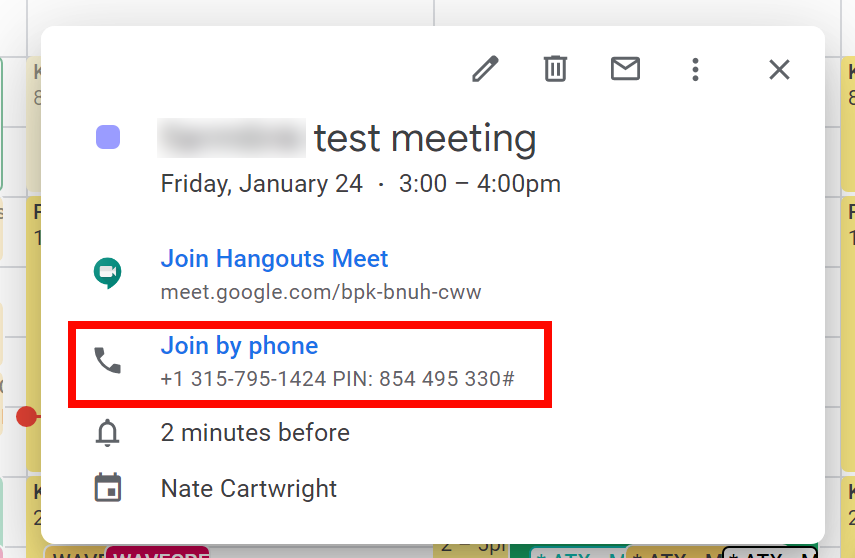
You can also join the meeting with the "Join Hangouts Meet button", but the phone number and PIN will be more reliable, and the phone number doesn't require installing any software or setting up a microphone and speakers on a computer or phone.
NOTE: If you create a recurring meeting and add a conference to it, the phone number and PIN code will remain the same for all future occurrences of that meeting/conference.
0 Comments