To connect to a virtual machine console (aka monitor display) in Hyper-V Manager:
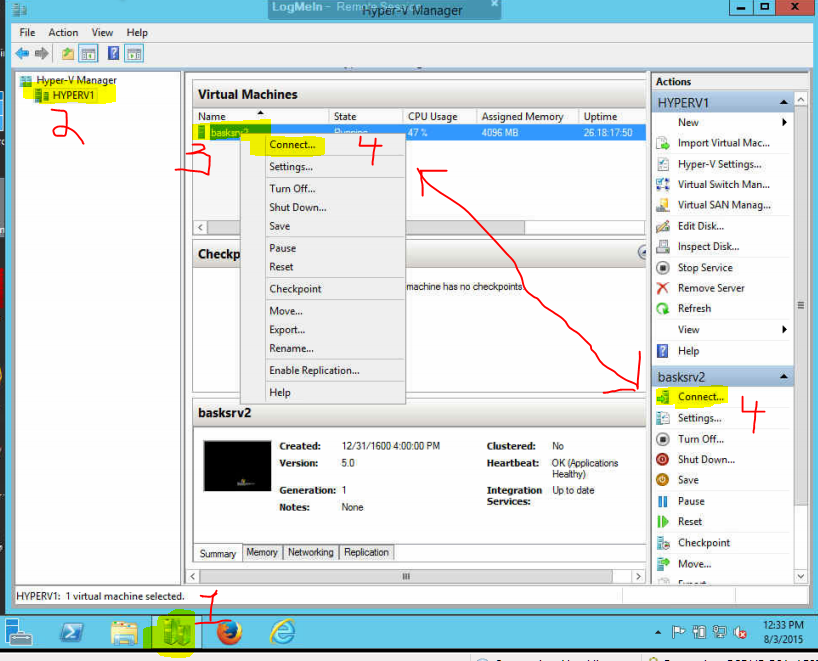
1) Launch Hyper-V management console (the icon that looks like two servers).
2) Select the server on the left (E.G. HYPERV1)
3) Click on the virtual server name in the main "Virtual Machines" pane (E.G. myvirtualserver).
4) Right-click and choose Connect, or click the Connect button in the task pane in the lower-right of the screen. This will launch the remote connection window for the virtual server:
Once the Virtual Machine Connection window is open, depending on your monitor resolution you may be unable to see the entire monitor/console of the VM. You can maximize the window, use the scroll-bars on the right to pan around the window, or simply resize the window: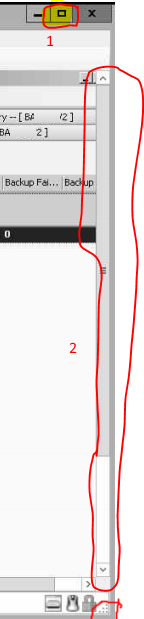
To log into a locked operating system, you must press the CTRL+ALT+DEL button in the toolbar, to send CTRL+ALT+DEL to the guest virtual machine:
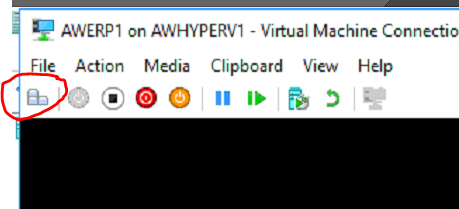
Note: If you press the actual keys on your keyboard, they will be sent to the Hyper-V host server and not the guest virtual machine
To paste in text, you will need to click Clipboard > Type clipboard text. CTRL+V does not work in the virtual machine connection:
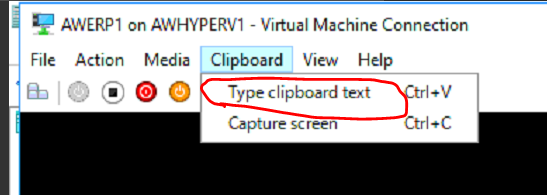
Note: To copy/paste between the virtual system, you would want to setup a Remote Desktop Connection or other remote access tool like Human-ISM Remote Screen Connect, LogMeIn or TeamViewer.
You may also want to lower the resolution of your virtual machine's monitor or increase the resolution of the host Hyper-V monitor so you don't need to scroll or maximize the window.
additional keywords: VM, server, HyperV, remote desktop
0 Comments